
Cimy Header Image Rotator and a Twenty Ten Child Theme

The previous post about rotating the header images in the Twenty Ten theme has been quite popular

but it was bad advice because as soon as you update your WordPress and/or theme files your changes are overwritten and lost. The solution is to move the changes into a child theme where they will overwrite the files in the original theme even when updating.

To make a child theme we simply create a folder in the WordPress themes folder (in the wp-content folder) and give it a name: mychildtheme (or whatever you want to call it).

We then save a plain text file called style.css into the mychildtheme folder. The style.css file reads:

/*
Theme Name: mychildtheme
Template: twentyten
*/

@import url(“../twentyten/style.css”);

#cimy_div_id {
clear: both;
border-top: 4px solid #000;
border-bottom: 1px solid #000;
width: 940px;
height: 198px;
}

Where the Theme name and Template are required to indicate the parent and the child. The import URL grabs the original style.css file to be altered by our style.css file. We then include the #cimy_div_id section that we had originally used in the header.php file.

Create a new plain text file and copy the contents of the header.php file into it. Replace the

code with the

as before (we no longer need the styling here as it is in the style.css file), and then save this as header.php into the mychildtheme folder.

We can now preview and activate our mychildtheme as you would any other theme within WordPress. Our modified header.php will be used instead of the default header.php and our style.css will be used to make changes to the default styling. You can add further changes to the styling by adding to the style.css file in the child theme. The Firebug extension for the Firefox browser is a quick way to experiment with making changes before adding the code to your style sheet.
GameSalad and the iGoD

Note: This will require the GameSalad plugin to be installed to work – and then it is probably only good with Safari on a Mac!

Experimenting with the GameSalad game creation software. It is still a beta version and has crashed my Mac several times – although this is probably largely due to me trying run before I can walk. But it only took a few minutes to cobble together an experimental piece that will become the Intergalactic Goats of Doom (or iGoD πŸ˜‰ but may evolve into the Intergalactic Vomiting Vampire Goats of Doom.

Update: This has now moved to here as the plug in continues to cause problems/crashes.

You just click to move the Smiley (or touch when I get it on an iPad) to or from the goat. Why not? The M key kills the backing beat and the S key starts it again.

Cimy Header Image Rotator and the Twenty Ten Theme

Update Note: This piece referred to older versions of WordPress and Cimy Header plugin. With the arrival of WordPress 3.1 and version 4 of the Cimy Header plugin some of the details have changed but the basic idea will still work πŸ˜‰ You are looking for:

// Houston, we have a new header image!
echo get_the_post_thumbnail( $post->ID );
elseif ( get_header_image() ) : ?>

Insert your amendments here

This was the original post:

With the recent arrival of the very wonderful WordPress 3 comes a neat new default theme called Twenty Ten which you are now looking at. Within the theme’s clean and simple layout there are plenty of options for tweaking for that individual touch. I had added an image to the header (and other featured images to head individual pages) but after snapping some passing clouds (get it?) and the occasional [wikipop]paraglider[/wikipop] while sunbathing, I wanted the header image to cycle through several images (as above)…

[Note: If you only want to rotate through the images supplied with the theme try the Twenty Ten Header Rotator plug in]

Enter the Cimy Header Image Rotator plug in which looked like it was up to the job but needed some simple tweaking to fit in with the Twenty Ten theme. This is what I did…

Once the plugin is installed and activated you need to create a folder as detailed in the documentation. In the WordPress Settings section you can adjust the speed of image change and the duration of the fade etc. Set the width and height to the theme’s default 940 x 198.

In the Appearance section select the Editor and then click Header from the list on the right. It may be a good idea to select all the contents of header.php, copy it and save it in a text document somewhere safe. Then when it all gets screwed up you can put the original code back πŸ˜‰

The given code to insert is:

Loading images...


which we want to insert into the header code to replace:

which can be found between an

else : ?>

and a

towards the bottom.

My code ended up looking like:

Which amounted to removing the Loading images text, moving the NoScript bit up to the top – this kicks in if the visitor does not have JavaScript enabled so provide a link to some image that will load for them, and editing the Style section thus…

The rotating images will probably align with the right hand column in the theme and hang off the page to the right – the clear: both; will bring them back onto the page. The border top and bottom keeps the look the same as the standard Twenty Ten theme image and ties in with the menu under the image. The width and height are corrected to the theme’s default values.

And that was that.

Update: This will all be broken when you update to the new versions of WordPress / Twenty Ten Theme – like what I just did :-/

I have moved the whole thing into a child theme so as to avoid further breakages.

Me (not) Mobile?

Have just enjoyed the 60 day trial of Mobile Me. Having a house full of Macs which will be joined, I do not doubt, at some time by an iPad all that syncing and sharing stuff is just the job. Mostly I was using the picture gallery which, combined with a dinky WordPress plugin, provided a quick link from here to there.

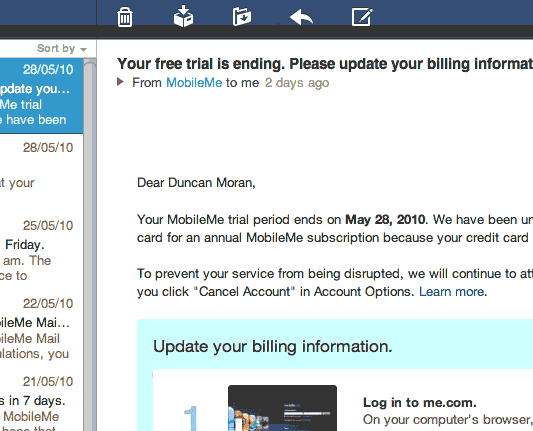
The trial expired but no payment was charged. Instead an email complaining that something was wrong with my card details…

…which was strange. I checked the details and all seemed, as far as I could see, to be correct but still it was rejected…

…which was strange because the details of the same card are stored at the Apple Store where it is used (far too) frequently…

One of their suggestions was to purchase a box from the Apple Store, have that delivered by snail mail, discard the disc and packaging into the recycle bin, and type in the included activation key. [W:Cloud computing] eh! It’s the future!

In the past I have purchased QuickTime Pro and Aperture activation keys from the Apple Store but alas a Mobile Me activation key is not availabe.

So, for now, I have given up and rolled my own using the Gallery software.. Perhaps not as pretty as Apple’s but it does the job. A bit of PHP in the widgets over there (->) adds an image and a link. A bit of FTP adds a straight through connection.

The email said they would keep the account active until the 12th June which is just after WWDC and some rumours say… that Mobile Me will be free anyway. Hmmm!