Planet Panogaea

More bizarre one star reviews on the app store. This time for Panogaea. It is claimed that it does nothing and is a scam.

Admittedly having a web site which is still under construction does did not inspire confidence (The site is now up and running) but it all seems to work as described…

You can just click and drag directly in the image (using the Command and Control modifier keys) to make the changes. Full documentation and examples are available from the Help menu.

An Introduction to Panogaea from Kevin Gross from the official Panogaea support site.

UnMac Apps from the Mac App Store

Mac users have come to expect a certain standard and consistency from their software. OK we can tolerate the non-standard interface once in a while but some things are just assumed. Until today’s launch of the Mac App store. What we have are a lot of ports from the iPad/iPhone school of app development with no consideration for, or perhaps even an understanding of, how such apps will be used and be expected to work on a Mac. Sadly these are supposed to have been vetted by Apple before being allowed into the store. With no demo/trial versions available from the store you do not know what you are getting until you already have it. So please can we have apps that…

…ask if you want to save your unsaved work when you Quit them?

…have an Edit menu and an Undo?

…comply with click and drag norms instead of leaping back several decades with a click, move and click again interface? These probably worked fine with a couple of fingers on a touch screen but not so good on a Mac – even with a Magic Track Pad.

…accept images dragged into them rather than having to Open them from the File menu?

…give us a clue what we are supposed to do? There is a Help menu on the Mac. I posted instructions for PinBall HD this afternoon… A couple of hours later it had been well used…

It also seems a bit hit and miss which apps are marked as installed. Those you acquire through the App Store are but those from other sources are not; yet some of my Apple apps are marked as installed Aperture, Garageband etc. although not from the App Store while others are not iWorks etc. If we are going for seamless updating surely all installed applications should be noted and updated as and when.

Update:
It seems software purchased directly from Apple through an Apple account is recognised as installed by the App Store; if purchased elsewhere it is not recognised.

The all new snail mail online modern world

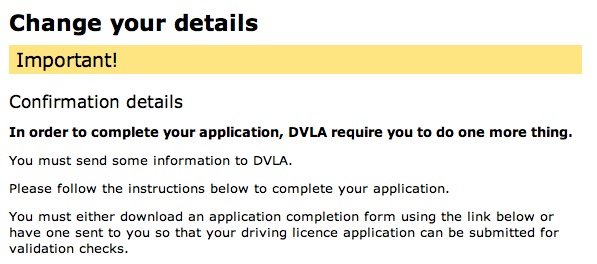
Excuse me while I bang my head against the wall…. Ah that’s better. So you move to a new address. So you need to tell the [wikipop]DVLA[/wikipop] your new address. You can fill in the new address on the back of the old driving licence and send it to them via snail mail or you can do it online. Being an online type of chap I opt for the latter. After some time filling and clicking my way through the online form I am informed that…

Send it in!

They even have the nerve to use Online in the form’s title…

Online?

Does [wikipop]Martha Lane Fox[/wikipop] know about this? She does not mention it. Excuse me while I print out my form and pop it and my old driving licence into an envelope, find a stamp, trudge out into the snow and post it…. roll on the [wikipop]Digital revolution[/wikipop]/[wikipop search=”Gershon Review”]Joined up government[/wikipop]/[wikipop]Brave New World[/wikipop] (Delete as appropriate).

Cimy Header Image Rotator and a Twenty Ten Child Theme

The previous post about rotating the header images in the Twenty Ten theme has been quite popular

but it was bad advice because as soon as you update your WordPress and/or theme files your changes are overwritten and lost. The solution is to move the changes into a child theme where they will overwrite the files in the original theme even when updating.

To make a child theme we simply create a folder in the WordPress themes folder (in the wp-content folder) and give it a name: mychildtheme (or whatever you want to call it).

We then save a plain text file called style.css into the mychildtheme folder. The style.css file reads:

/*
Theme Name: mychildtheme
Template: twentyten
*/

@import url(“../twentyten/style.css”);

#cimy_div_id {
clear: both;
border-top: 4px solid #000;
border-bottom: 1px solid #000;
width: 940px;
height: 198px;
}

Where the Theme name and Template are required to indicate the parent and the child. The import URL grabs the original style.css file to be altered by our style.css file. We then include the #cimy_div_id section that we had originally used in the header.php file.

Create a new plain text file and copy the contents of the header.php file into it. Replace the

code with the

as before (we no longer need the styling here as it is in the style.css file), and then save this as header.php into the mychildtheme folder.

We can now preview and activate our mychildtheme as you would any other theme within WordPress. Our modified header.php will be used instead of the default header.php and our style.css will be used to make changes to the default styling. You can add further changes to the styling by adding to the style.css file in the child theme. The Firebug extension for the Firefox browser is a quick way to experiment with making changes before adding the code to your style sheet.