Kickstarting R Stevie Moore

Only a few more days to raise funds for [wikipop]R. Stevie Moore[/wikipop]’s new recording:

Who’s R. Stevie Moore? Some may ask.

He started as a 7 year old on the [wikipop]Jim Reeves[/wikipop]’ But You Love Me, Daddy in 1959. You remember, it goes…

He subsequently dropped out of university and started a [wikipop]lo-fi music[/wikipop] career in the late 1960s. Since then he says: “I’ve worked harder than anybody to become rich and famous, but I remain poor and anonymous!” :

Find more R. Stevie Moore.

Frank Zappa / Takashi Yoshimatsu

[wikipop]Takashi Yoshimatsu[/wikipop] contemplates whether to shave or not…

While listening to the new [wikipop]Pascal Roge[/wikipop] recording of [wikipop]Erik Satie[/wikipop] and Yoshimatsu piano pieces on Spotify this piece seemed to have a familier ring to it…

Takashi Yoshimatsu – Noel In Midnight:

Frank Zappa – Watermelon In Easter Hay:

http://youtu.be/B9DqykUsqRY

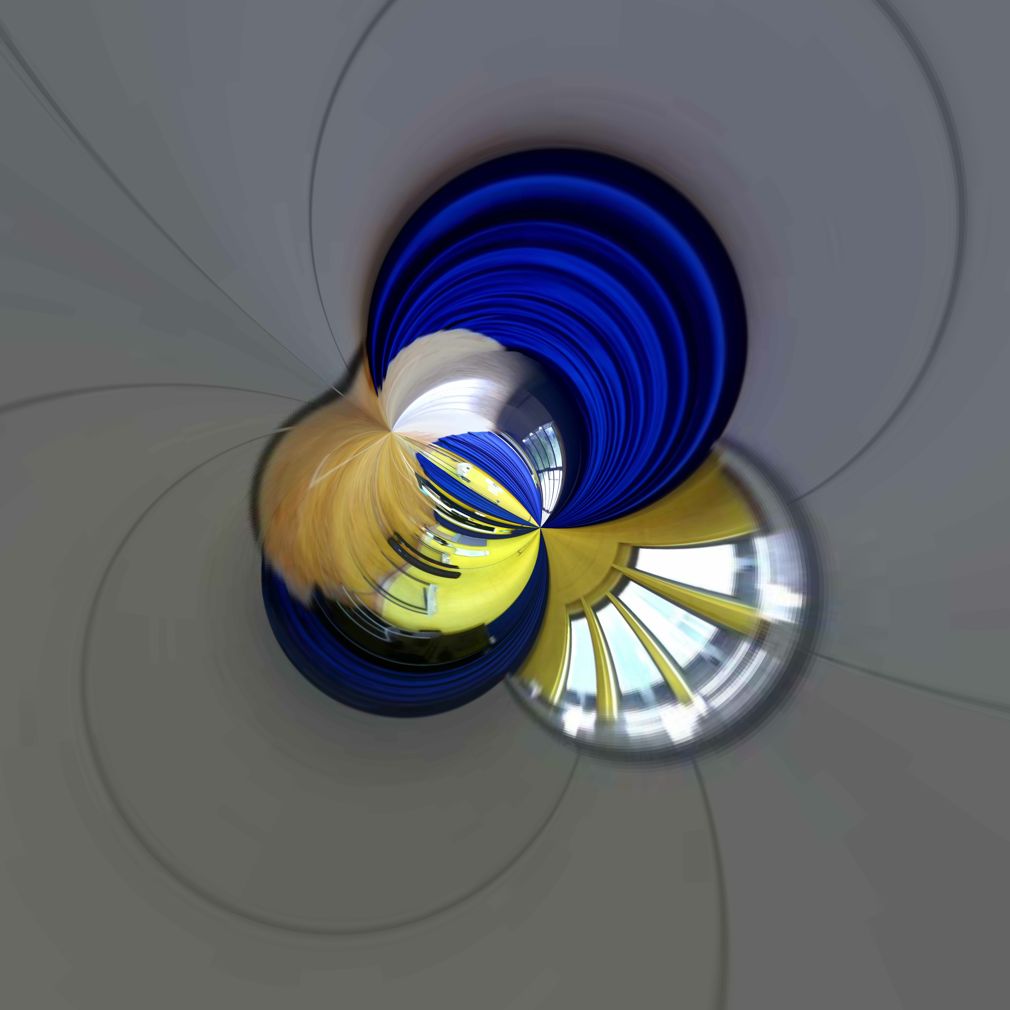
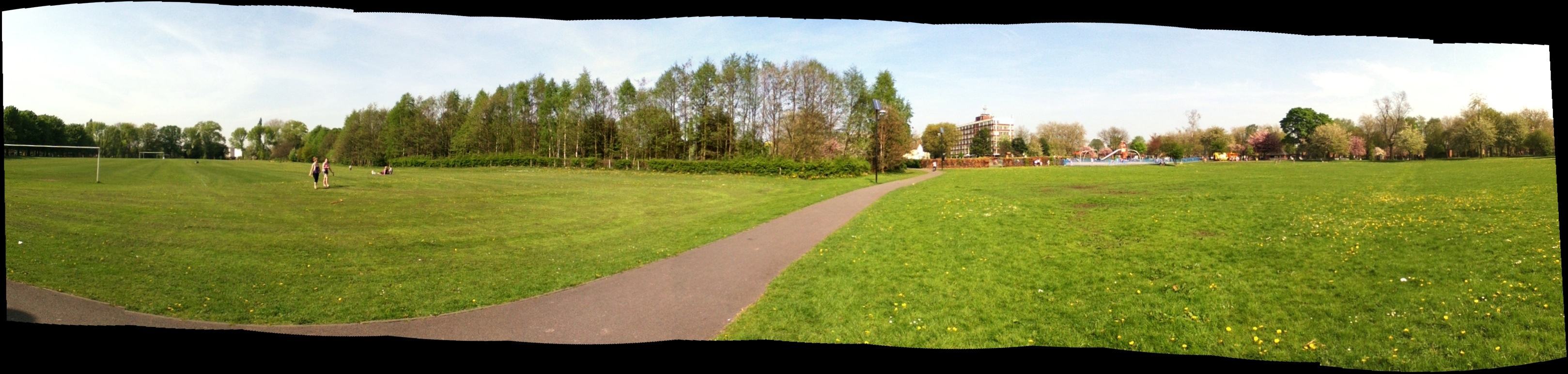
Planet Panogaea

More bizarre one star reviews on the app store. This time for Panogaea. It is claimed that it does nothing and is a scam.

Admittedly having a web site which is still under construction does did not inspire confidence (The site is now up and running) but it all seems to work as described…

You can just click and drag directly in the image (using the Command and Control modifier keys) to make the changes. Full documentation and examples are available from the Help menu.

An Introduction to Panogaea from Kevin Gross from the official Panogaea support site.

Some Pixelmator Colour Splash Rocket Science

There is a one star review of the excellent Pixelmator in the App Store….

Presumably referring to the ColorSplash app for [wikipop]iDevices[/wikipop] which holds a particular colour (or area of colours) while turning the rest of the image to [wikipop]greyscale[/wikipop]. How hard can it be…

With an image loaded into Pixelmator:

1: Choose Select Color from the Edit menu
2: Use the Eyedropper to select the colour to be retained
3: Use the Radius slider to adjust the amount of colour to be selected
4: Back to the Edit menu to Inverse the selection
5: From the Image menu choose Desaturate
6: Back to the Edit menu to Deselect the selection

Done. In under 30 seconds. Phew! Rocket science! Of course you could take longer and do a better job 😉 and there are several ways to achieve the same effect. To expand the selection to include several colours you could use the Magic Wand tool…