November – The month of spam

Unrelated Posts spam graph (November 2013)

While some spent November eating treats and occasionally writing a few words others spent it manfully holding back a flood of spam. Admittedly this is all taken care of by the wonderful Akismet plugin, without which many a blog would vanish under the ever growing spam problem, but even their servers occasionally struggled with the weight of it all.

Apparently some people still use the Windows operating system but it is increasingly hard to understand why they think that is a sensible or acceptable option when even that which claims to protect them from their own stupidity is part of the problem.

There are better alternatives to the piss-poor abomination that is Windows.

Inevitably…

Shove Lemur from an iPad on a Mac

Adapted from this Windows tutorial…

It is much the same procedure but as the Mac speaks fluent MIDI there is no need to add anything.

Ingredients:

A Mac
Ableton Live
iPad
Lemur app
Shove template
ClyphX/Push folders
(Requires a RAR Unpacker if you do not have one)

Procedure:

Right click on the Ableton Live icon and select Show Package Contents

showpack

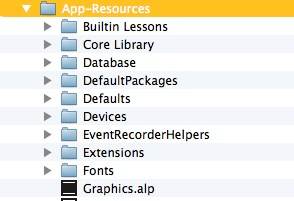
Drill down to the MIDI Remote Scripts folder

contents

appres

MIDIrem

Rename the Push folder as Original_Push

Unpack the RAR file containing the ClyphX/Push folders and put those folders in the MIDI Remote Scripts folder

If your WiFi network is liable to interference/lag you should create an ad-hoc network. The video below just connects via the regular WiFi network.

adhoc

In the iPad’s WiFi settings select your ad-hoc network if you created one

Start the Lemur app and load the Shove template from the Lemur editor on the Mac

In the Mac’s MIDI/Audio set up Utility select the Network button

Connect the iPad to the Session

Open Ableton Live and then its Preferences

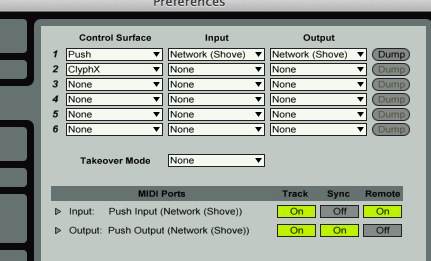
Select Push and Cyphx as Input Devices and the network session as Input and Output

livepref

Shove away…

Minecraft is not damaged and should not be moved to the Trash

I will usually dismiss most applications that claim to work across Macs/Windows/Linux as not worth downloading to take a look at as they are usually written with Java and so they will be slow and clunky and ugly. [wikipop]Minecraft[/wikipop] is the exception that proves the rule.

It seems a fairly common problem on a Mac that Minecraft refuses to run reporting that it is damaged and needs to be Trashed…
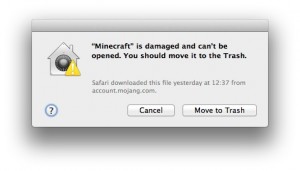
Minecraft damaged warning window

Although my son has had it running on his own account on this Mac (OS X 10.8.3 / Java version 1.7.0_07) it has never worked for me. The official fix suggests that it is related to the Mac’s Gatekeeper and you should right click on the Minecraft icon, select Open from the menu and then Open again in the warning window. This did not work for me.

There are various fixes suggested on various forums but none seemed relevant to my problem. Mac apps, beneath the single icon, are bundles of all the various bits and pieces that the app requires. I went mining into the app with a right click and selecting Show Package Content….
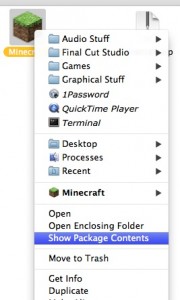
Show Package Contents

and I found the Java (.jar) file to launch Mincraft… MinecraftLauncher.jar which was in the Java folder which was in the Resources folder which was in the Content folder
(or in the order of opening … Content > Resources > Java > MinecraftLauncher.jar)

Double clicking the MinecraftLauncher.jar file opens the Minecraft window, and you can log in, and it downloads the bits it needs, and then… it crashes 🙁

Looking through the crash log there was mention of LWJGL (Lightweight Java Game Library) files and so they were updated from the LWJGL site.

These need to go into the Application Support within the Library. Select Go from the Finder menu and then Library (if you do not see Library listed hold down the Alt key). From the Library folder select..

Application Support > Minecraft > bin

and pop the lwjgl.jar and lwjgl_util.jar files into there. Then in the Natives folder add your other lwjgl files.

Now double clicking the Minecraft icon opens a window… that informs you that Minecraft is damaged and should be dumped in the Trash… but double clicking the MinecraftLauncher.jar icon opens the Minecraft window and away you go 🙂
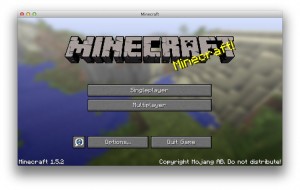
MInecraft working

To save digging down to the launcher everytime I right clicked on it and selected “Make Alias” to make a shortcut icon that I dragged onto the Desktop.

Lazy Sunday

So you find yourself in bed on a Sunday morning and you have flicked through Flipboard on the iPad when you remember that the new [wikipop search=”EPUB”]ePub[/wikipop] edition of Programming in Objective-C by Stephen Kochan is on the iMac downstairs. Phew! Downstairs! No problem. We have Prompt with which we can log into the sleeping iMac and [wikipop]mv[/wikipop] the book into the iMac’s Dropbox folder from which automagically it appears in the iPad’s Dropbox and then opens in iBooks.

Of course you could just get the iBooks version 😉 but where’s the fun in that?

Lazy Sunday = Small Faces…

…and thence Stanley Unwin.

More Apple Mapping

Whilst one can appreciate the humour…

…and the apology

if you want to see what the Tesco store in [wikipop]Gerrards Cross[/wikipop] (the one [wikipop search=”Gerrards Cross Tunnel”]built over the railway line[/wikipop]) looks like you can turn to your trusty Maps folder on your iOS 6 device

and see that, according to Nokia Maps, it is a building site…

and from Google Maps we learn that it is a slightly more advanced building site…

but with Apple Maps we can see it is a fully functioning store.